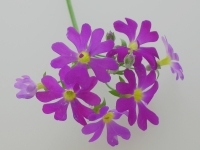
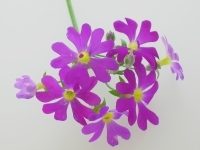
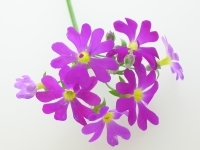
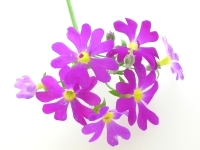
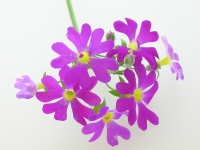
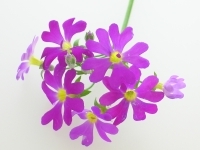
Tuesday, November 28, 2006

ImageMagickで色相を変える

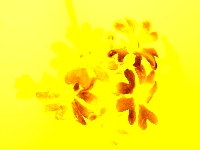
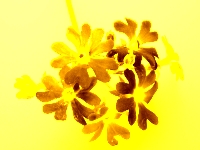
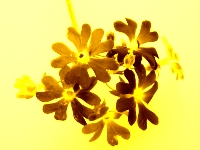
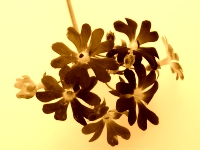
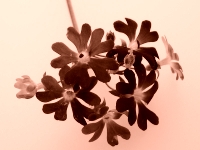
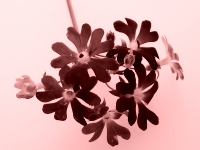
ImageMagickで色相を変えるには、以下のコマンドを実行します。

rem 環境によって変えてね
set im=C:\Progra~1\ImageMagick-6.3.0-Q16
rem 色相を変更(明るさ・彩度はそのまま)
%im%\convert.exe sample1.jpg -modulate 100,100,0 sample17a.jpg
%im%\convert.exe sample1.jpg -modulate 100,100,10 sample17b.jpg
%im%\convert.exe sample1.jpg -modulate 100,100,20 sample17c.jpg
%im%\convert.exe sample1.jpg -modulate 100,100,30 sample17d.jpg
%im%\convert.exe sample1.jpg -modulate 100,100,40 sample17e.jpg
%im%\convert.exe sample1.jpg -modulate 100,100,50 sample17f.jpg
%im%\convert.exe sample1.jpg -modulate 100,100,60 sample17g.jpg
%im%\convert.exe sample1.jpg -modulate 100,100,70 sample17h.jpg
%im%\convert.exe sample1.jpg -modulate 100,100,80 sample17i.jpg
%im%\convert.exe sample1.jpg -modulate 100,100,90 sample17j.jpg
%im%\convert.exe sample1.jpg -modulate 100,100,100 sample17k.jpg
%im%\convert.exe sample1.jpg -modulate 100,100,110 sample17l.jpg
%im%\convert.exe sample1.jpg -modulate 100,100,120 sample17m.jpg
%im%\convert.exe sample1.jpg -modulate 100,100,130 sample17n.jpg
%im%\convert.exe sample1.jpg -modulate 100,100,140 sample17o.jpg
%im%\convert.exe sample1.jpg -modulate 100,100,150 sample17p.jpg
%im%\convert.exe sample1.jpg -modulate 100,100,160 sample17q.jpg
%im%\convert.exe sample1.jpg -modulate 100,100,170 sample17r.jpg
%im%\convert.exe sample1.jpg -modulate 100,100,180 sample17s.jpg
%im%\convert.exe sample1.jpg -modulate 100,100,190 sample17t.jpg

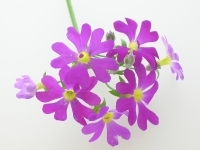
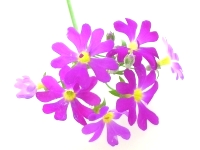
元画像(sample1.jpg)
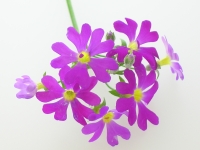

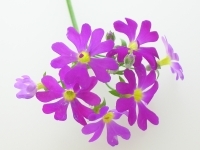
-modulate 100,100,0 (sample17a.jpg)
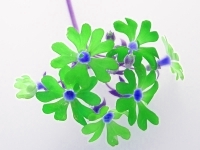

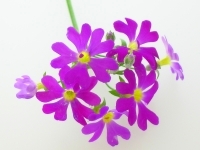
-modulate 100,100,10 (sample17b.jpg)
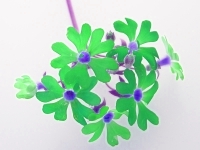

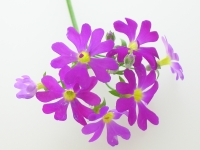
-modulate 100,100,20 (sample17c.jpg)


-modulate 100,100,30 (sample17d.jpg)
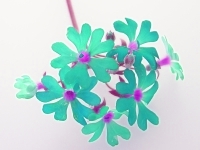

-modulate 100,100,40 (sample17e.jpg)
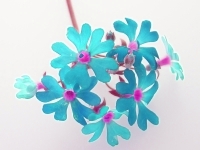

-modulate 100,100,50 (sample17f.jpg)


-modulate 100,100,60 (sample17g.jpg)
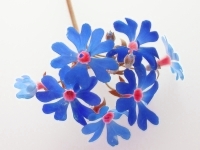

-modulate 100,100,70 (sample17h.jpg)
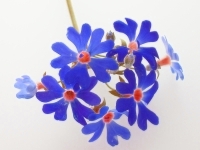

-modulate 100,100,80 (sample17i.jpg)
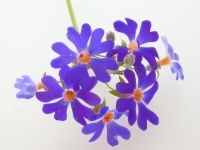

-modulate 100,100,90 (sample17j.jpg)
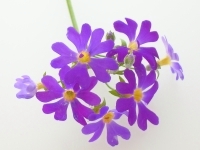

-modulate 100,100,100 (sample17k.jpg)


-modulate 100,100,110 (sample17l.jpg)
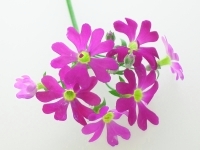

-modulate 100,100,120 (sample17m.jpg)
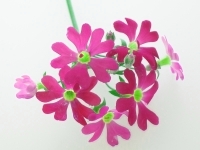

-modulate 100,100,130 (sample17n.jpg)
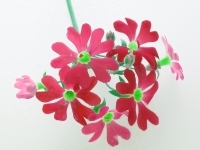

-modulate 100,100,140 (sample17o.jpg)


-modulate 100,100,150 (sample17p.jpg)
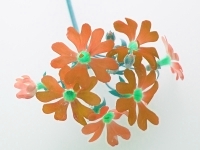

-modulate 100,100,160 (sample17q.jpg)
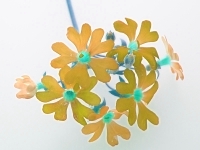

-modulate 100,100,170 (sample17r.jpg)


-modulate 100,100,180 (sample17s.jpg)
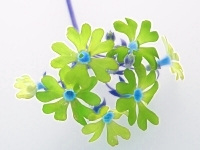

-modulate 100,100,190 (sample17t.jpg)


関連項目
ImageMagickとPHPで、明度・彩度・色相を変更する

ImageMagickで彩度を変える

ImageMagickで彩度を変えるには、以下のコマンドを実行します。

rem 環境によって変えてね
set im=C:\Progra~1\ImageMagick-6.3.0-Q16
rem 彩度を変更(明るさはそのまま)
%im%\convert.exe sample1.jpg -modulate 100,80 sample16a.jpg
%im%\convert.exe sample1.jpg -modulate 100,90 sample16b.jpg
%im%\convert.exe sample1.jpg -modulate 100,100 sample16c.jpg
%im%\convert.exe sample1.jpg -modulate 100,110 sample16d.jpg
%im%\convert.exe sample1.jpg -modulate 100,120 sample16e.jpg

元画像(sample1.jpg)


-modulate 100,80(sample16a.jpg)


-modulate 100,90(sample16b.jpg)


-modulate 100,100 彩度そのまま(sample16c.jpg)


-modulate 100,110(sample16d.jpg)


-modulate 100,120(sample16e.jpg)


関連項目
ImageMagickとPHPで、明度・彩度・色相を変更する

ImageMagickで明るさを変更する

ImageMagickで明るさを変更するには、以下のコマンドを実行します。

rem 環境によって変えてね
set im=C:\Progra~1\ImageMagick-6.3.0-Q16
rem 明るさを変更
%im%\convert.exe sample1.jpg -modulate 80 sample15a.jpg
%im%\convert.exe sample1.jpg -modulate 90 sample15b.jpg
%im%\convert.exe sample1.jpg -modulate 100 sample15c.jpg
%im%\convert.exe sample1.jpg -modulate 110 sample15d.jpg
%im%\convert.exe sample1.jpg -modulate 120 sample15e.jpg

元画像(sample1.jpg)


-modulate 80=明るさ20%ダウン (sample15a.jpg)


-modulate 90=明るさ10%ダウン(sample15b.jpg)


-modulate 100=明るさそのまま(sample15c.jpg)


-modulate 110=明るさ10%アップ(sample15d.jpg)


-modulate 120=明るさ20%アップ(sample15e.jpg)


関連項目
ImageMagickとPHPで、明度・彩度・色相を変更する
ImageMagickでグレースケール・白黒・セピア調変換

ImageMagickで、画像をグレースケール変換するには、
以下のコマンドを実行します。

rem 環境によって変えてね
set im=C:\Progra~1\ImageMagick-6.3.0-Q16
rem グレースケールに変換
%im%\convert.exe sample1.jpg -type GrayScale sample14a.jpg

元画像(sample1.jpg)


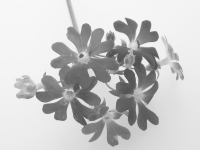
グレースケール変換(sample14a.jpg)


昔の新聞調に白黒変換するには以下のコマンドを実行します。
rem 環境によって変えてね
set im=C:\Progra~1\ImageMagick-6.3.0-Q16
%im%\convert.exe sample1.jpg -monochrome sample14b.jpg

白黒変換(sample14b.jpg)


セピア調に変換するには、以下のコマンドを実行します。
rem 環境によって変えてね
set im=C:\Progra~1\ImageMagick-6.3.0-Q16
rem セピア調に変換
%im%\convert.exe sample1.jpg -sepia-tone 10%% sample14c.jpg
%im%\convert.exe sample1.jpg -sepia-tone 20%% sample14d.jpg
%im%\convert.exe sample1.jpg -sepia-tone 30%% sample14e.jpg
%im%\convert.exe sample1.jpg -sepia-tone 40%% sample14f.jpg
%im%\convert.exe sample1.jpg -sepia-tone 50%% sample14g.jpg
%im%\convert.exe sample1.jpg -sepia-tone 60%% sample14h.jpg
%im%\convert.exe sample1.jpg -sepia-tone 70%% sample14i.jpg
%im%\convert.exe sample1.jpg -sepia-tone 80%% sample14j.jpg
%im%\convert.exe sample1.jpg -sepia-tone 90%% sample14k.jpg
%im%\convert.exe sample1.jpg -sepia-tone 95%% sample14l.jpg
%im%\convert.exe sample1.jpg -sepia-tone 99.9%% sample14m.jpg

オンラインマニュアルに書いてある通り、80%くらいが良いようです。

-sepia-tone=10%(sample14c.jpg)


-sepia-tone=20%(sample14d.jpg)


-sepia-tone=30%(sample14e.jpg)


-sepia-tone=40%(sample14f.jpg)


-sepia-tone=50%(sample14g.jpg)


-sepia-tone=60%(sample14h.jpg)


-sepia-tone=70%(sample14i.jpg)


-sepia-tone=80%(sample14j.jpg)


-sepia-tone=90%(sample14k.jpg)


-sepia-tone=95%(sample14l.jpg)


-sepia-tone=99.9%(sample14m.jpg)


関連項目
RMagickで画像を暗めのセピアトーンに変換する
ImageMagickとPHPで画像をセピアトーンに変換する

Monday, November 27, 2006

ImageMagickで画像の左右反転を行う

ImageMagickで画像の左右反転を行うには、
-flopオプションを使用します。

set im=C:\Progra~1\ImageMagick-6.3.0-Q16
%im%\convert.exe sample1.jpg -flop sample13.jpg

元画像(sample1.jpg)


左右反転画像(sample13.jpg)


関連項目
ImageMagickとPHPで、画像の上下反転・左右反転をおこなう (PHP&Imagick)

ImageMagickで文字列を画像で塗りつぶすには

ImageMagickで文字列を画像で塗りつぶすには
-tileオプションを使用します。

set im=C:\Progra~1\ImageMagick-6.3.0-Q16
%im%\convert.exe -size 240x80 xc:#fad759 -tile pattern1.gif -pointsize 70 -draw "text 0,60 Sample" sample12.jpg

パターン画像(pattern1.gif)


出力画像(sample12.jpg)


関連項目
ImageMagickとPHPで文字列を画像で塗りつぶす